Deeper dive into current events
Whenever I see a news story or a headline online, I usually feel like I don’t have the whole picture. The headline tells me what happened, but not much about why it happened or what it really means, or whether it’s happened before. I almost always want more information. Things like: What led up to this? How common is this? What facts or data are behind the story?
The frustrating part is that even though we have access to seemingly endless information online, in many cases I still want more. Important details are spread across long articles, confusing charts, or not shown at all. Over time, this has made me realize how important clear data and good explanations are — and how much easier it is to understand something when information is organized and easy to see.
To address this problem with AI in mind I searched, and discovered NotebookLM from Google. To create a new Notebook, follow the steps below.
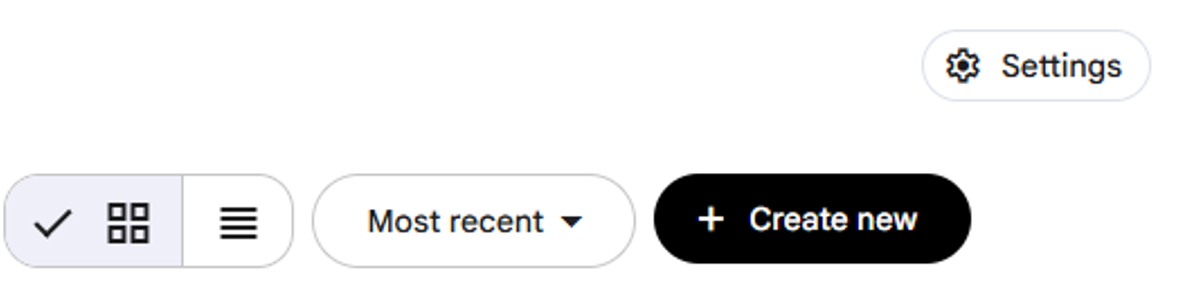
Navigate to Notebook LM
Click on the Create New button on the far right to create a new notebook within Notebook LM.
You’ll then get a popup where you can search for sources given the subject of your new notebook.
Additionally, if you have your own files you can drop them in here as well.
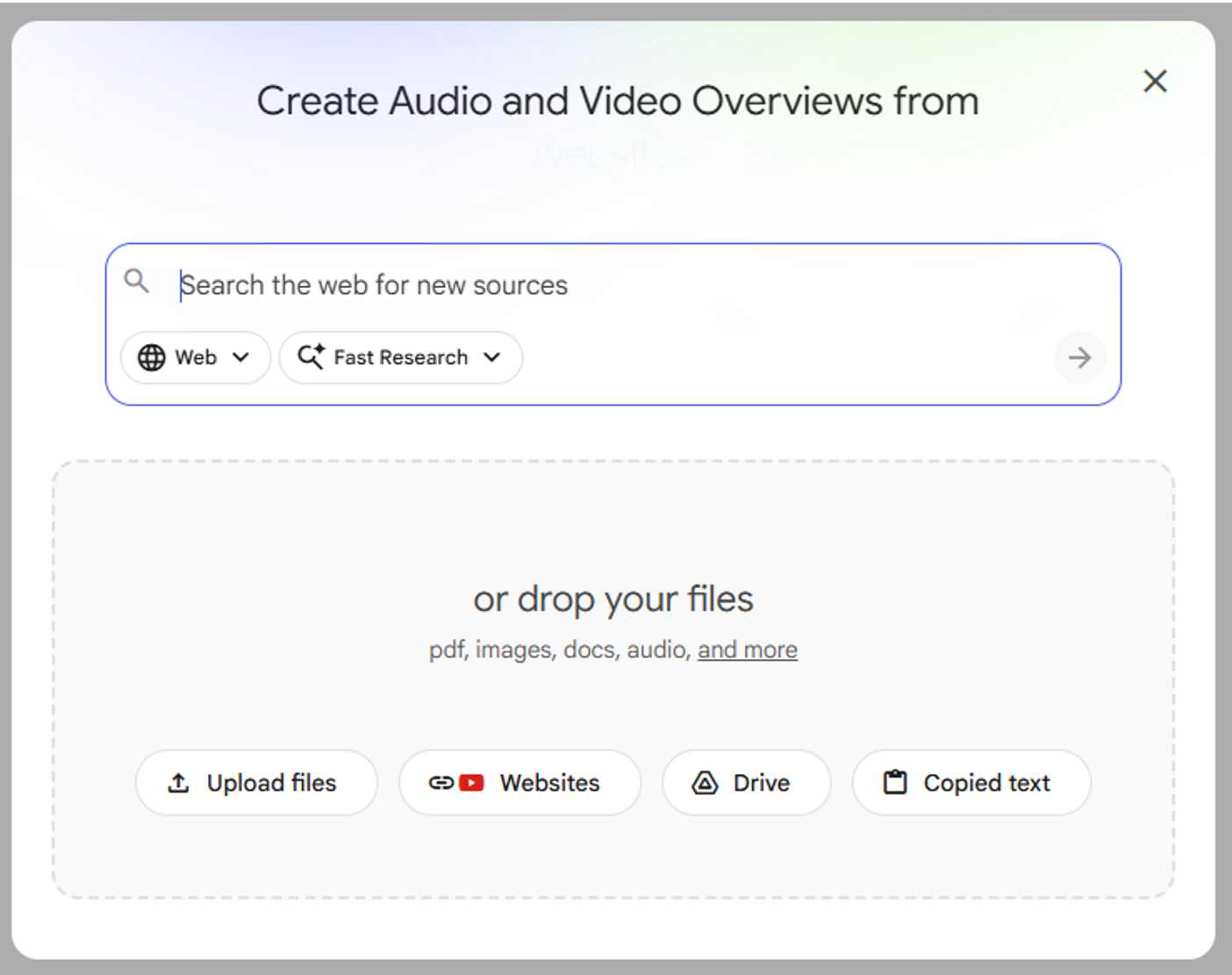
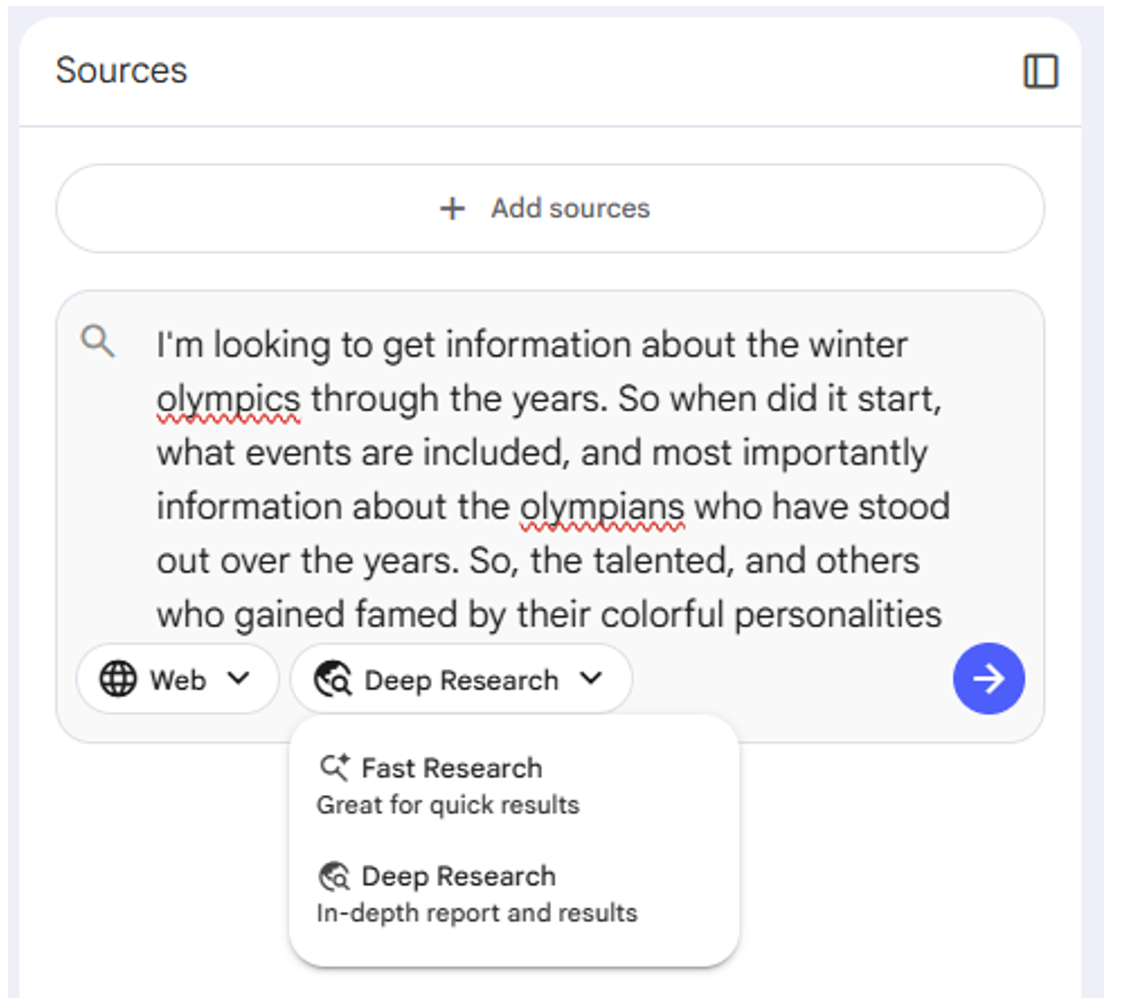
For this exercise and given the timing (watching the curling finals), I’m going to look to get details about the winter Olympics.
To accomplish this, you can type in your prompt (what you’re looking to do) in the box as detailed below.
Note that I have changed the level of research from Fast to Deep.
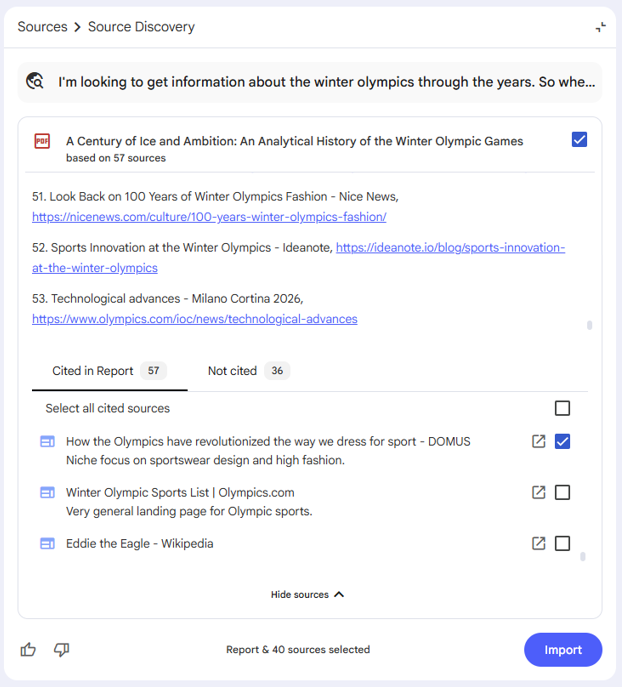
This will take a little bit longer to process than the Fast Research option as it takes multiple steps to carry this out which you can see as it progresses.
I went through the list and removed a few seemingly duplicate sources, and then clicked on Import.
There is a maximum number of sources that you can import which depends on your plan. For the most of us this is 50.
This pulls all of the sources directly into your Notebook.
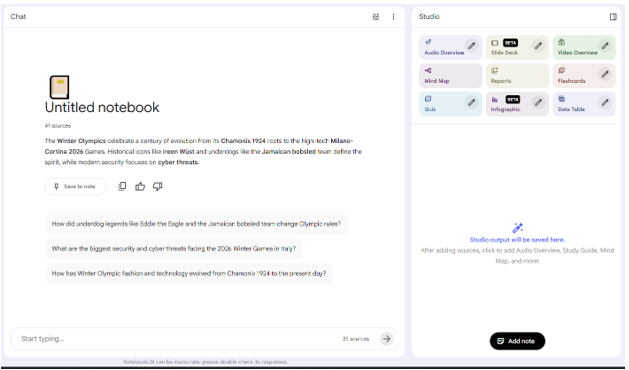
From here, the fun begins. On the right hand side you have multiple options available to you in the Studio panel.
My favorite is the Audio Overview, which basically creates a podcast from the sources.
The infographic is also very interesting, and it is what I used to generate the image for this blog.
Slide deck is also great as it puts together a presentation deck for you.
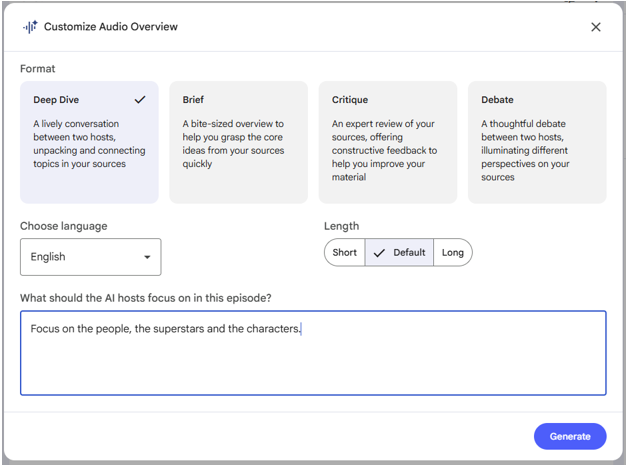
For those items detailed above with the “pencil” icon, you can click on it to set the options for the specific deliverable.
The image to the right is for customizing the audio overview item.
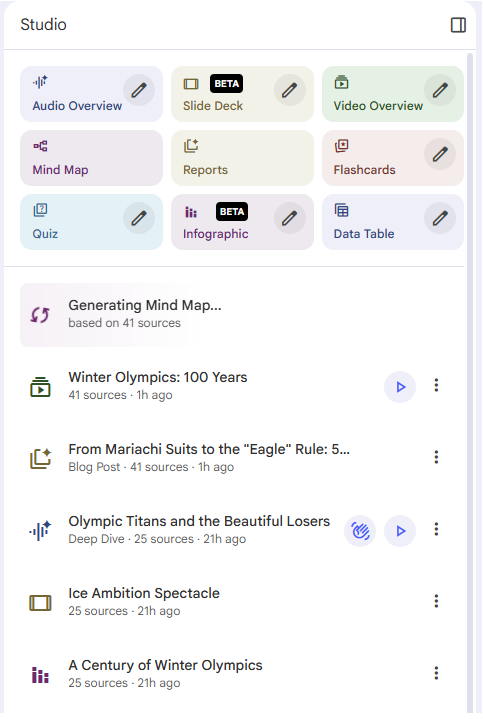
You can generate multiple items in parallel.
As things complete, links are provided within the studio area.
One thing to point out, things are never perfect. Notice that the Mind Map is still being generated nearly 12 hours later.
You can try each of these items through the following link: Winter Olympics
I highly recommend the Audio Overview, and that you open it with the interactive mode. Once there, ask some questions interactively. The hosts will then pause the podcast to respond to your question.
The interactivity here is very, very cool.
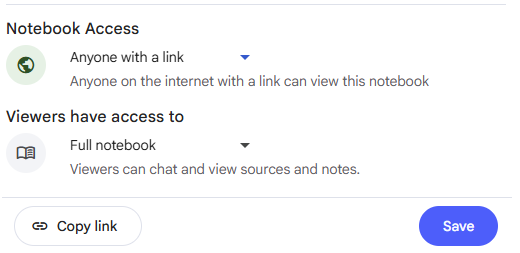
If you want to share your notebook, you can share with other individuals as (view / editor), or with anyone who has access to the link.
I’ve done this for a bunch of the notebooks that I had previously created.
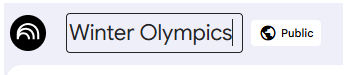
Lastly, you can rename the Notebook in the upper left side of the page.
You could have done this at any time, but I waited until I was sure that there was going to be something useful here.
Further examples of Notebooks that I have created are provided below:
Have to say, I was extremely impressed with the capabilities here. So, the next time you want to do some research, or if you want to share content with a wider audience think about using NotebookLM!
